Share Documentation PRs with Reviewers Without GitHub Accounts (2026)
Your legal team, subject matter experts, and external partners need to review documentation, but they don't have GitHub accounts. DraftView's External Reviews let them comment and suggest edits in a visual editor. Everything syncs back to your PR as native GitHub Suggested Changes.
The Problem: Docs-as-Code Review Is Gated Behind GitHub
If your documentation lives in a GitHub repository (Markdown, MDX, or AsciiDoc), your review workflow is tied to GitHub pull requests. That works when every reviewer is an engineer with a GitHub account. It breaks the moment you need sign-off from someone outside engineering.
Legal counsel reviewing compliance language. A product manager confirming feature descriptions. An external SME validating technical accuracy. A client approving public-facing docs before launch. None of these people want to create a GitHub account, navigate a diff view, or learn Markdown syntax just to say "change this sentence."
The usual workaround is copying content into Google Docs or email. That creates version drift, scattered feedback, and hours of manual reconciliation back into the PR. DraftView's External Reviews remove that step.
How External Reviews Work
External Reviews let you generate a secure, password-protected link for any documentation PR. The reviewer opens the link in their browser: no GitHub account needed, no login, no onboarding. They review the document in a clean visual editor. When they submit, you receive their feedback in your DraftView dashboard and selectively push approved suggestions to GitHub.
Step 1: Create a Review Link from Your Dashboard
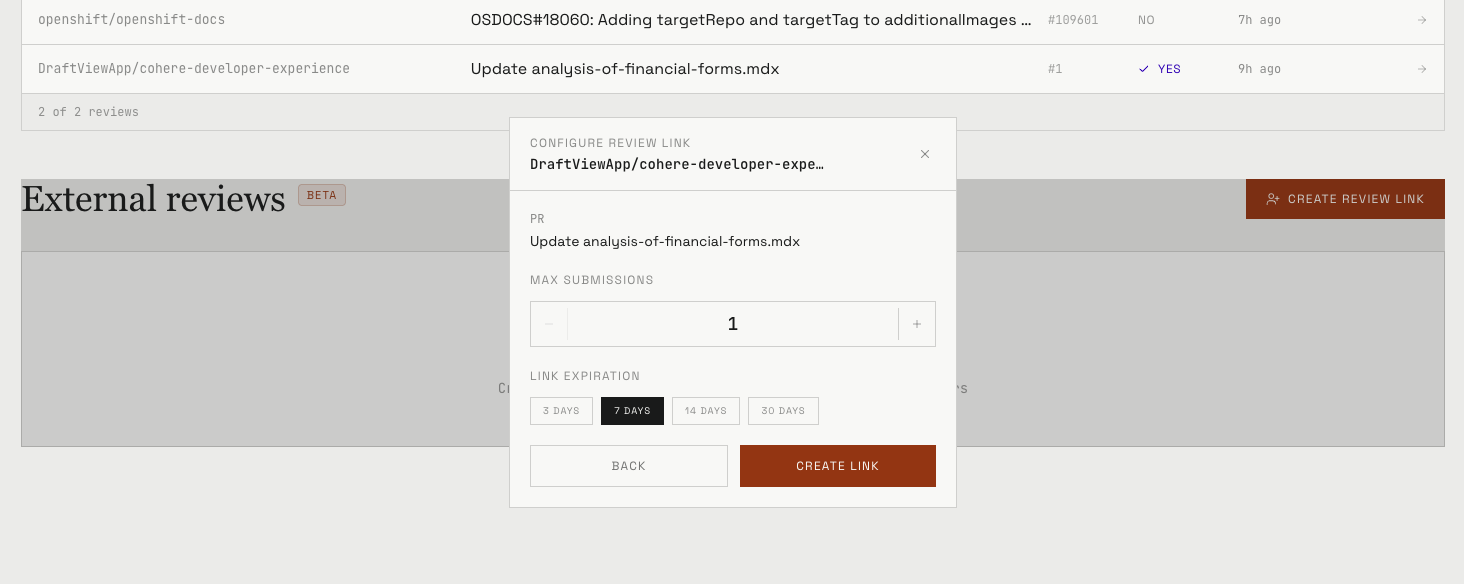
Open your DraftView dashboard and scroll to the External Reviews section. Click Create Review Link, then select the PR you want to share from your list of open pull requests.
Configure the link settings:
- Maximum submissions: how many reviewers can submit feedback using this link (default: 1).
- Link expiration: how many days the link stays active (3, 7, 14, or 30 days).
Click Create Link to generate the review link.
Step 2: Share the Link and Password
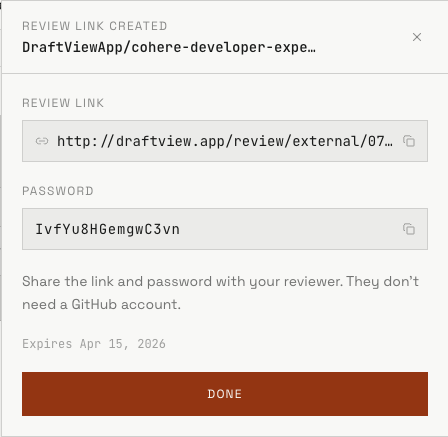
After creation, DraftView shows you the review link and a generated password. Copy both and send them to your reviewer via email, Slack, or any channel you use.
The password adds a layer of protection: even if the link is shared further, only someone with the password can access the document. You can revoke the link at any time from your dashboard.
Step 3: The Reviewer Opens the Link and Starts Reviewing
Your reviewer opens the link in their browser. They enter the password, type their name, and land directly in a clean document editor. No GitHub account, no sign-up, no onboarding.
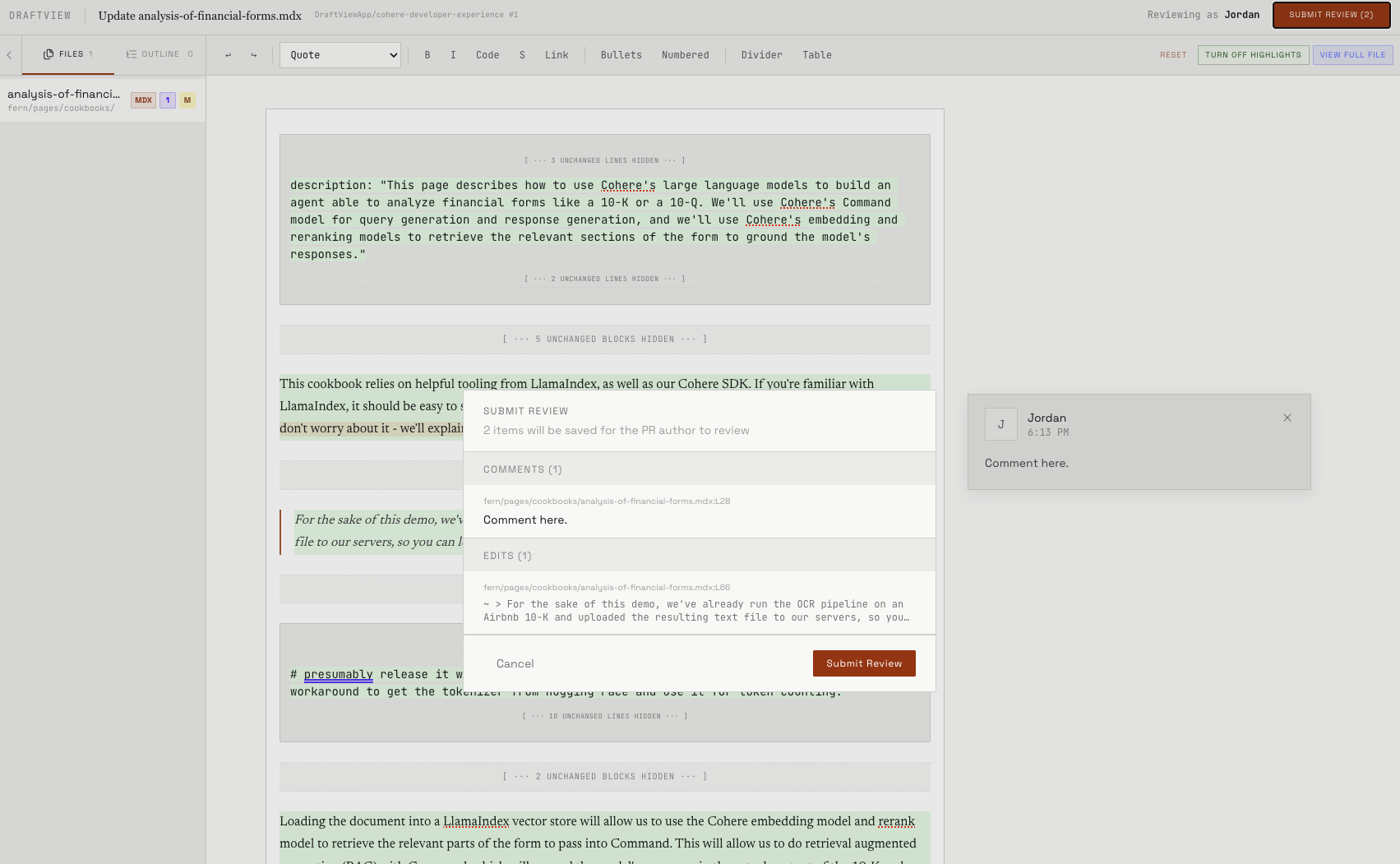
The reviewer sees the documentation rendered as it will appear when published, not as raw Markdown or a diff view. They can:
- Read the full document or toggle to see only the changed sections.
- Leave comments on specific lines or paragraphs.
- Make inline edits directly in the text, like suggesting changes in Google Docs.
- Toggle diff highlights on or off depending on their preference.
- Navigate using the outline to jump between sections.
Step 4: The Reviewer Submits Their Feedback
When the reviewer is done, they click Submit Review. DraftView shows a summary of their comments and edits before confirming submission. Once submitted, the reviewer can close the window. Their work is saved and waiting for you.
Step 5: Review Feedback and Push to GitHub
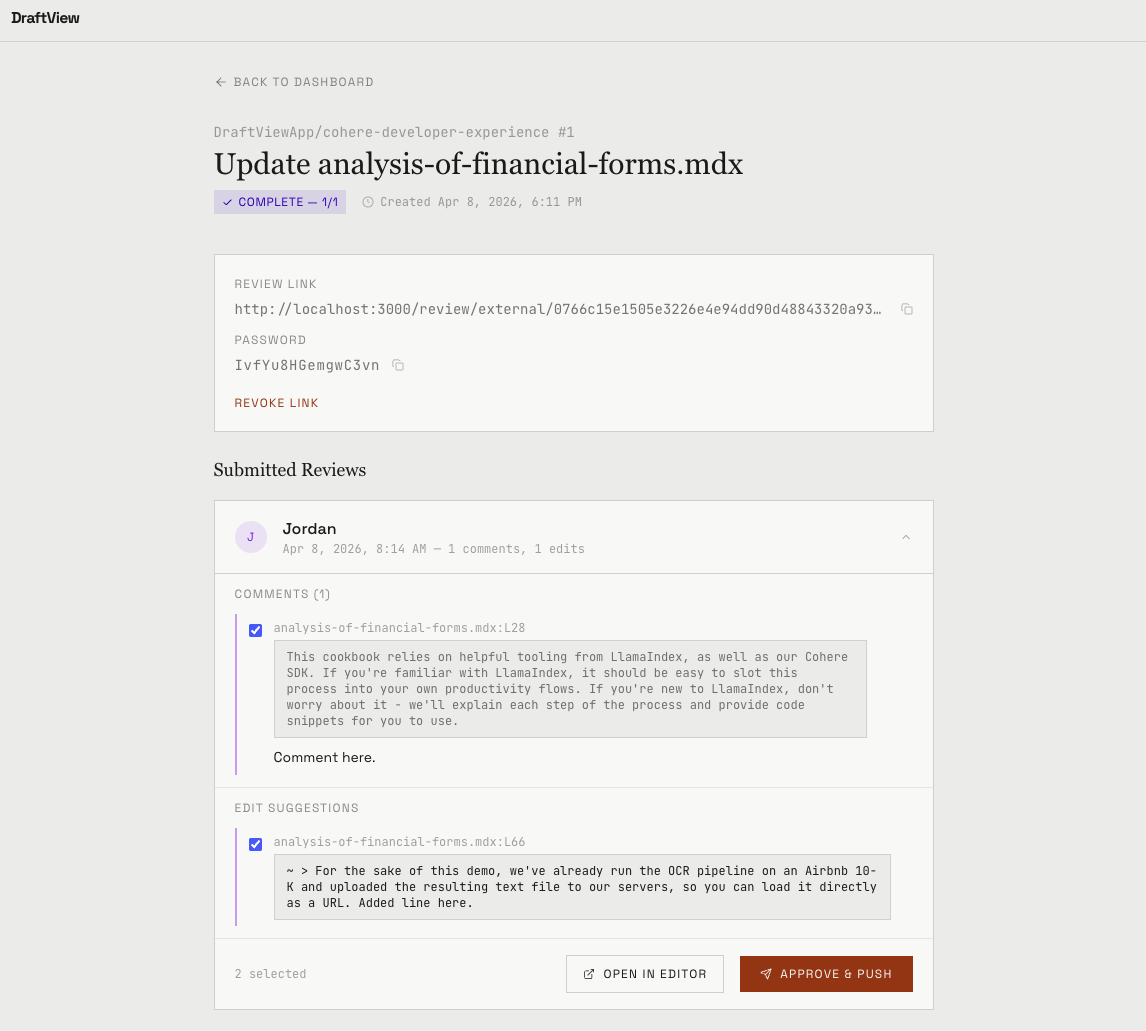
Back in your DraftView dashboard, you will see the completed review. Click into it to see every comment and edit suggestion the reviewer submitted, each one tied to the exact file and line in your PR.
From here you have two options:
- Open in Editor: visually inspect each suggestion in context before deciding.
- Approve & Push: select the suggestions you want and push them to GitHub as native Suggested Changes on your PR. Selectively approve: you control what reaches GitHub.
Security and Access Control
External Review links are designed with security in mind:
- Password-protected: reviewers must enter a password to access the document.
- Expiring links: links automatically deactivate after the window you set (3 to 30 days).
- Submission caps: limit how many reviews can be submitted per link.
- Instant revocation: revoke access at any time from your dashboard.
- Isolated sessions: each reviewer sees only their own canvas. They never see other reviewers' feedback.
- Writer-gated: nothing reaches your GitHub PR until you explicitly approve it.
When to Use External Reviews
External Reviews are built for any scenario where a reviewer doesn't have GitHub access:
- Legal sign-off: share compliance-sensitive docs with legal counsel for review and approval.
- SME review: get domain expert feedback from specialists outside your engineering team.
- Client review: let clients review and approve documentation before publication.
- Agency collaboration: enable external writing agencies or contractors to suggest edits.
- Executive approval: get leadership sign-off without asking them to create a GitHub account.
Get feedback from anyone, ship it through GitHub.
External Reviews let your non-GitHub stakeholders review docs in a visual editor. Their feedback flows back to your PR as native Suggested Changes. No copy-paste, no Google Docs detour, no version drift.
Sign in with GitHub14-day free trial, no credit card required. Free for public repos.
Resources
- ProseLint Web: Free browser-based Vale prose linter for style guides.
- Markdown Editor: Free online Markdown and MDX editor with live preview.
- Docs Review Compare Index: Compare DraftView with Google Docs, Confluence, and GitHub.
- DraftView Trial: Start reviewing documentation PRs visually with a public GitHub pull request.